Feature
Team Accounts
Group your customer's people into a company, with roles that control who can buy and who can approve.
What it does
Team Accounts is the foundation everything else in CrewCommerce sits on. It turns a set of individual WooCommerce customers into one company, each person with a role — Requester, Manager, or Admin — that decides what they can do and whether their orders need sign-off.
Why you'd use it
Any time you sell to a business rather than a single shopper, more than one person is usually involved in buying — someone who needs supplies, and someone who signs off on spending them. Team Accounts is what lets both of those people have their own login to your store, instead of sharing one account or ordering by phone.
How to set it up
-
Create the company
From CrewCommerce > Companies in WP Admin, click Add New. Give it a name and pick an existing customer account to be its Admin. You can also let customers create their own company at registration — see Self-Onboarding & Join Requests.
-
Add team members
Open the company and click Invite Member (this button appears both in WP Admin and, for Managers and Admins, in the storefront under Manage Team — Requesters don't see it at all). Enter an email and pick a role. If that email belongs to an existing customer, they're emailed an invitation and join once they open its link while logged in. Joining a company lets its Managers approve and see their orders, so nobody is added without agreeing. If the email is new, CrewCommerce creates the account and emails them to set a password. When you invite someone from WP Admin, an existing customer is added straight away.
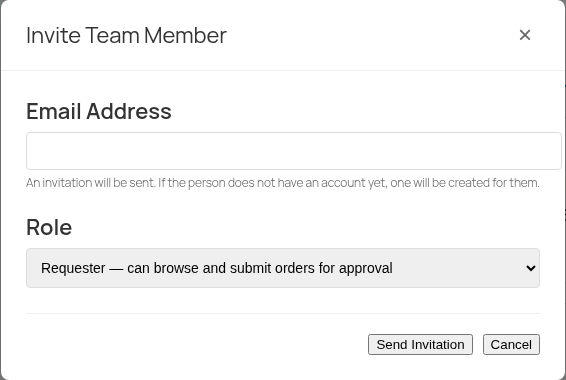
The invite form — the same fields whether it's opened from WP Admin or, as shown here, from the storefront's Manage Team page. 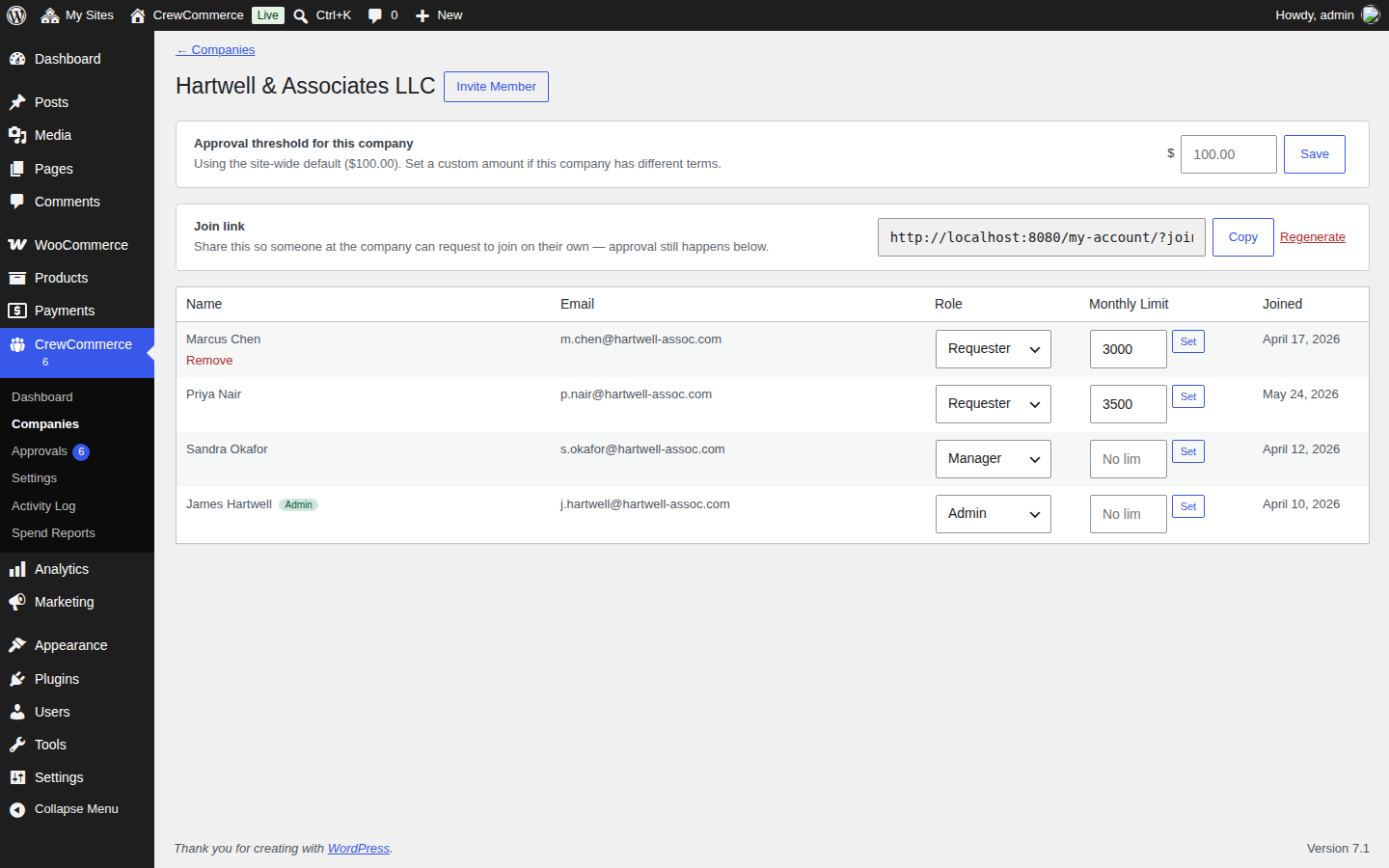
A company's roster in WP Admin — Admins are tagged, every member's monthly limit can be set from here, and the join link above it is the self-serve alternative (see Self-Onboarding & Join Requests). -
Set roles and limits
Change anyone's role with the dropdown next to their name. With Pro you can also give them a monthly spending limit — see Spend Limits. Changes apply immediately.
Managing a team day-to-day
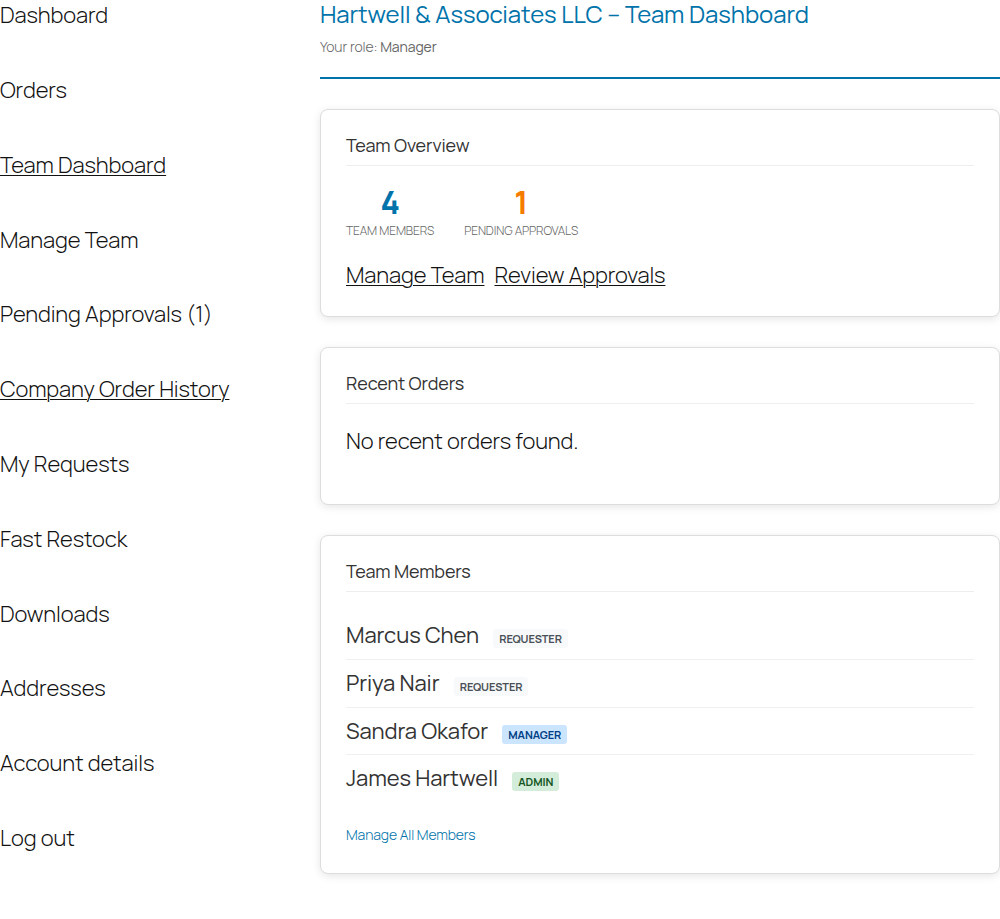
Every team member gets a Team Dashboard tab in My Account — a quick overview of the company, its member count, and (for Managers and Admins) how many approvals are waiting:
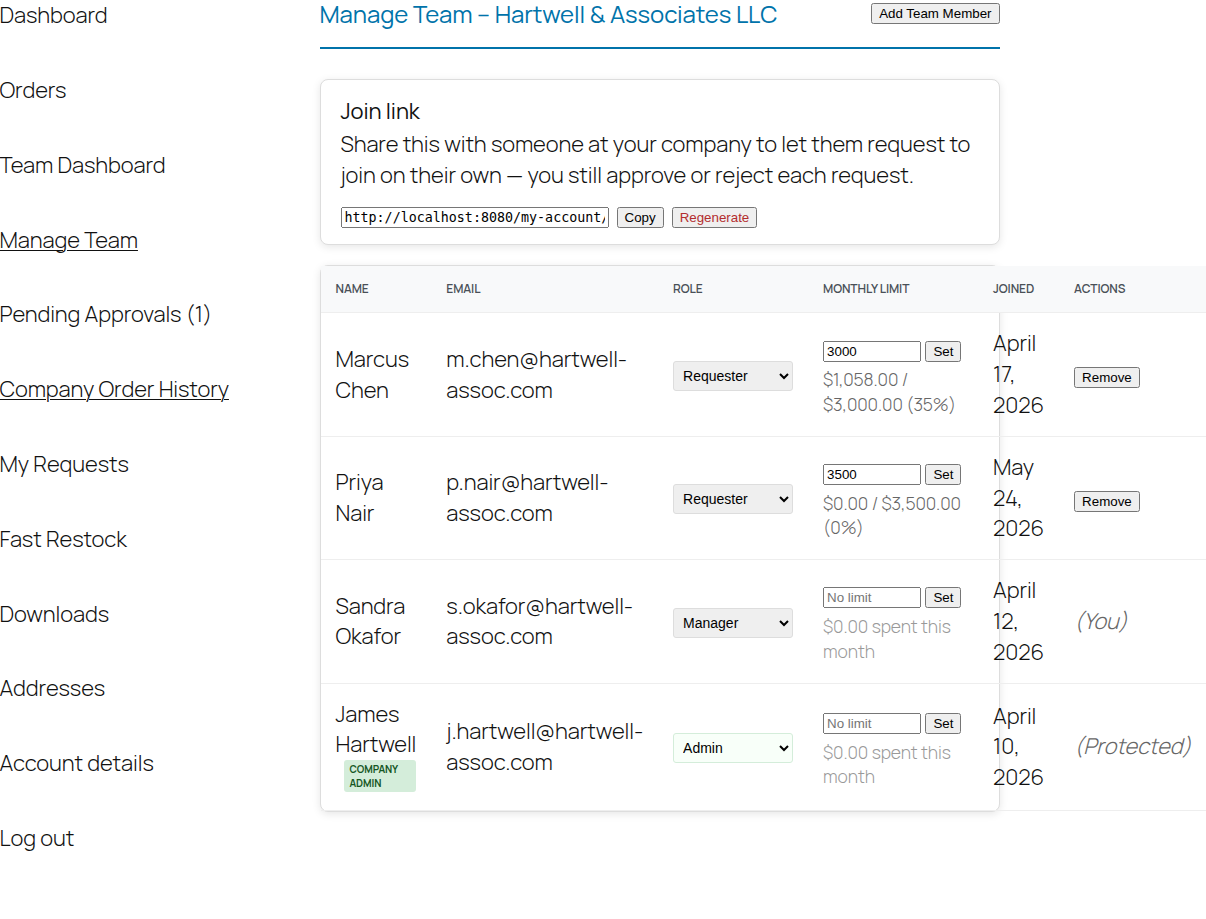
Managers and Admins also get a dedicated Manage Team tab, so they don't need WP Admin access to run their team day to day:
What to expect
- Every company has exactly one Admin. Trying to invite someone who's already in a different company fails — a person can only belong to one company at a time.
- Managers and Admins can remove team members (except themselves) — the person reverts to being a normal WooCommerce customer, no longer tied to the company.
- A Manager can promote or demote other Requesters and Managers, but can't remove or demote the Admin. If someone who approves orders leaves or becomes a Requester, the orders waiting for them pass to the company's next Manager or Admin, or wait for you to claim them if there's nobody left.
- When inviting someone, a Manager can only assign Requester or Manager — the Admin option only appears if the person sending the invite is themselves an Admin.
Common mistakes
Edge case: a company with no Manager or Admin
If everyone with Manager or Admin permissions leaves a company — through removal, or their account being deleted — the company is left with only Requesters. This is a real, supported state, not an error: their orders still go through, they just come out the other side unassigned until you or another admin steps in. See Approval Workflows and Troubleshooting.