Feature
Approval Workflows
Decide which orders need sign-off, and let the right person approve or reject them from your storefront.
What it does
Approval Workflows checks every Requester's order against rules you set, and — if it matches — holds the order as Pending Approval and routes it to that company's Manager or Admin for a decision, instead of sending it straight through to you.
Why you'd use it
It's the difference between "please don't order anything over $500 without asking me first" being an honor system, and it being something your store actually enforces.
How to configure it
Everything lives on CrewCommerce > Settings.
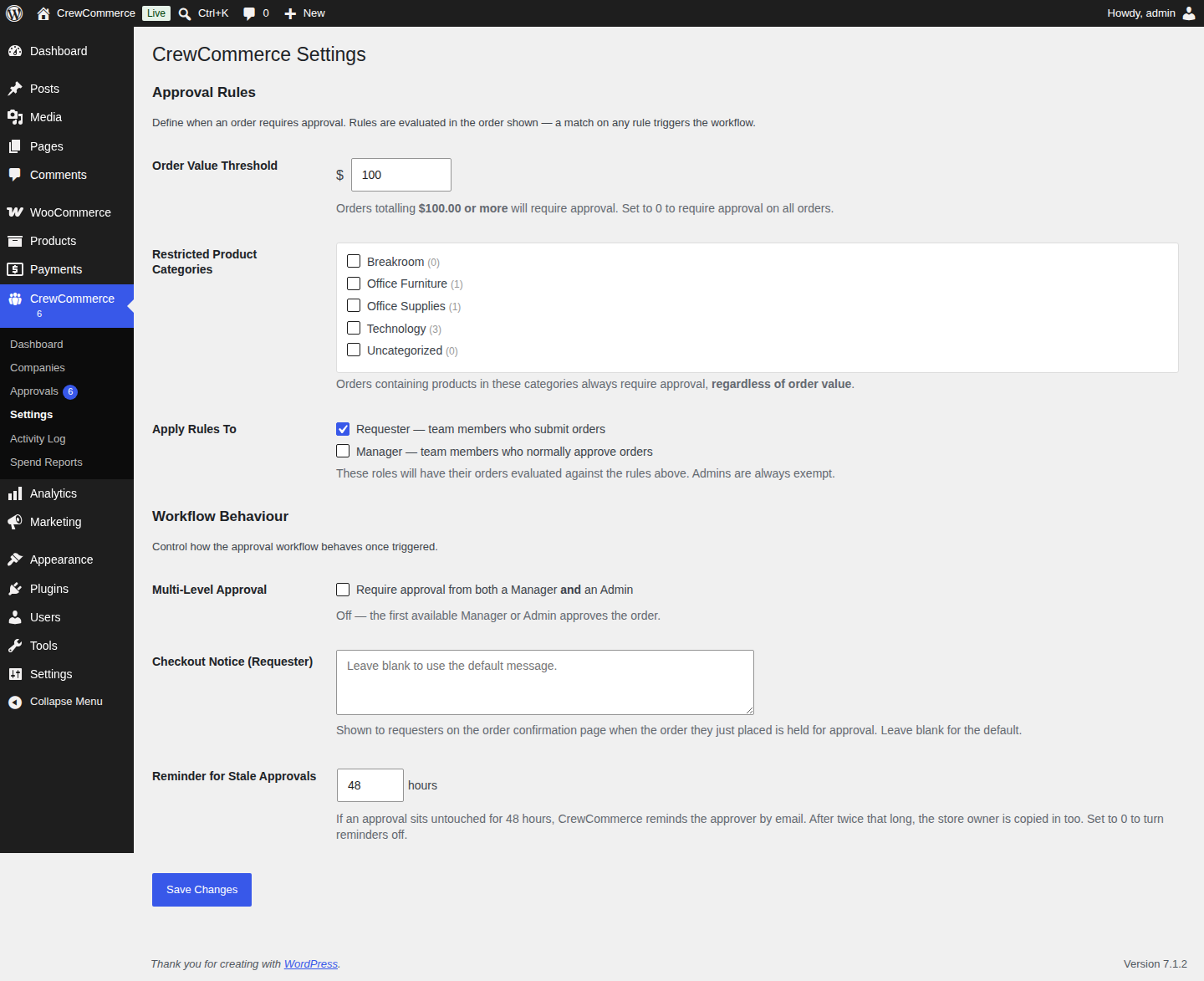
Approval Rules
- Order Value Threshold — orders totalling this amount or more require approval. Set to 0 to require approval on every order.
- Restricted Product Categories — orders containing anything from a checked category always require approval, regardless of total.
- Apply Rules To — which roles these rules apply to. Requesters are checked by default; you can add Managers too. Admins are always exempt, no matter what you choose here. Nobody approves their own order: a Manager's order goes to another Manager, or to the company Admin if there isn't one.
Rules are evaluated in that order — category first, then value — and the first match is what triggers approval.
Workflow Behaviour
- Multi-Level Approval — off by default, meaning the first available Manager or Admin can approve. Turn it on to require both: a Manager approves first, then an Admin approves after.
- Checkout Notice (Requester) — the message a Requester sees on the order confirmation page when the order they just placed is held for approval. Leave blank to use CrewCommerce's default wording, which names their approver, or write your own.
- Reminder for Stale Approvals — how many hours an approval can sit untouched before CrewCommerce emails the approver a reminder.
A company can also have its own approval threshold override, set from that company's detail page in WP Admin, if it needs different terms than the site-wide default.
How it plays out at checkout
When a Requester's order matches a rule, they check out as normal and the order is placed — but it's held as Pending Approval instead of going through to you. Their approver is emailed, and the confirmation page tells the Requester who it's waiting on:
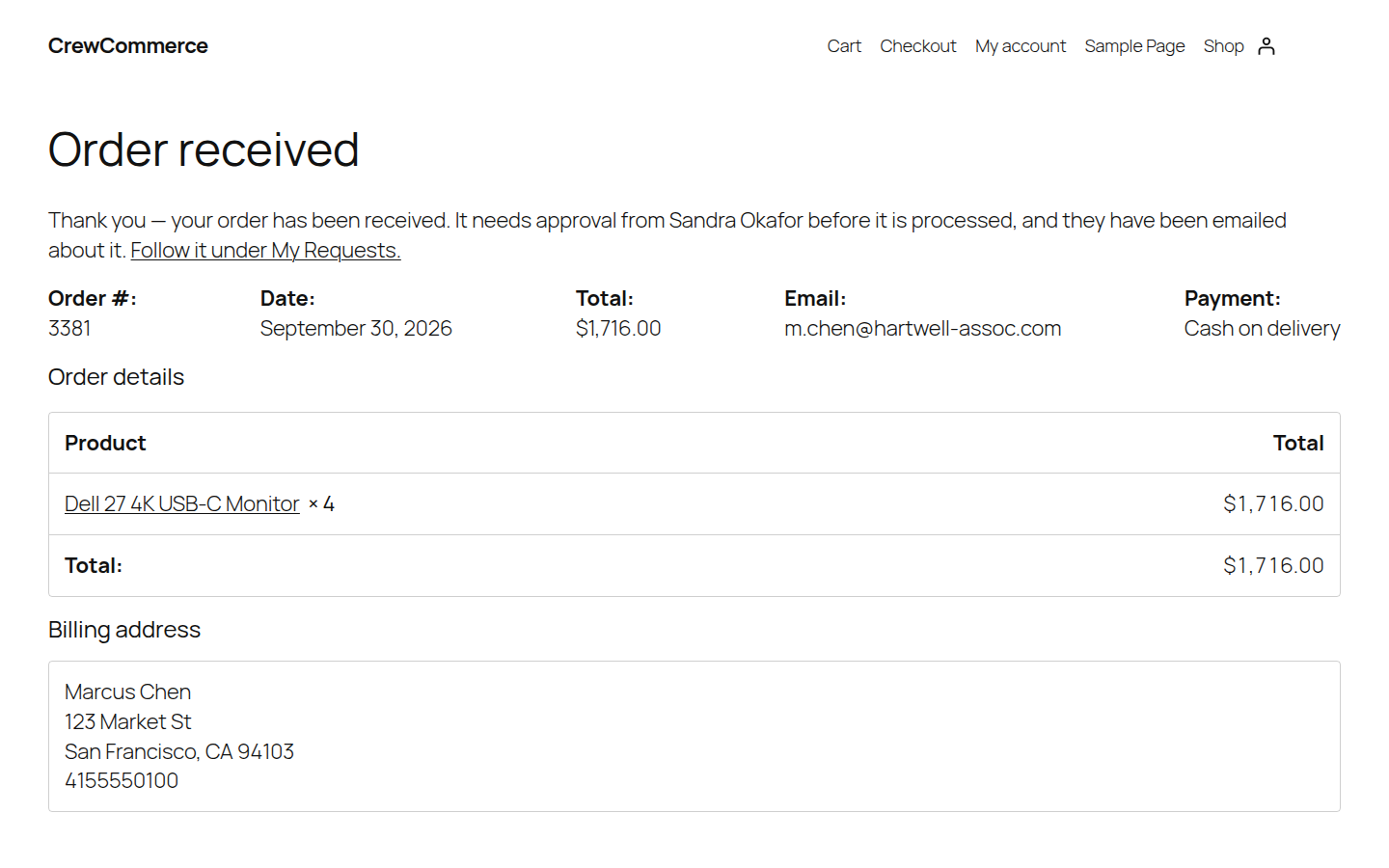
A held order doesn't show up as a new order to fulfil — you get WooCommerce's usual new-order email once it's approved (and, for online payments, paid). If the company has nobody who could approve it, see below.
Payment after approval
Nothing is charged while an order waits for approval — WooCommerce skips the payment step for a held order. What happens once it's approved depends on how the store takes payment:
| Payment method on the order | After approval |
|---|---|
| Cash on delivery | Goes straight to Processing, as it would have at checkout. |
| Direct bank transfer or Check | Goes to On hold, awaiting payment, as it would have at checkout. |
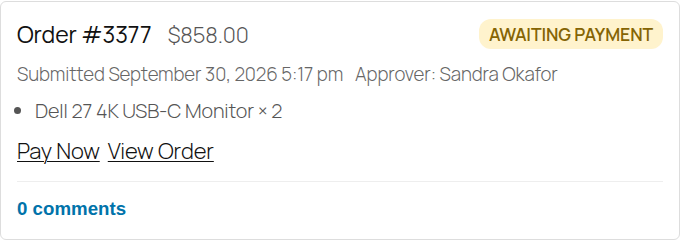
| Anything taken online — cards and other payment gateways | Goes to Pending payment. The Requester's approval email includes a link to pay, and a Pay Now button appears on the order in their My Requests. Once they pay, it moves to Processing as normal. |
| Already paid, or nothing to pay | Goes straight to Processing. |
The confirmation page tells a Requester paying online that they haven't been charged yet and will be sent a link to pay. Approved orders waiting for payment aren't cancelled by WooCommerce's "hold stock" timer — they stay open until the Requester pays or you cancel them.
crewcommerce_status_after_approval filter — see Advanced Usage.
Approving or rejecting
Managers and Admins see everything waiting on them under My Account > Pending Approvals, with the order's items, an optional note, and Approve / Reject buttons:
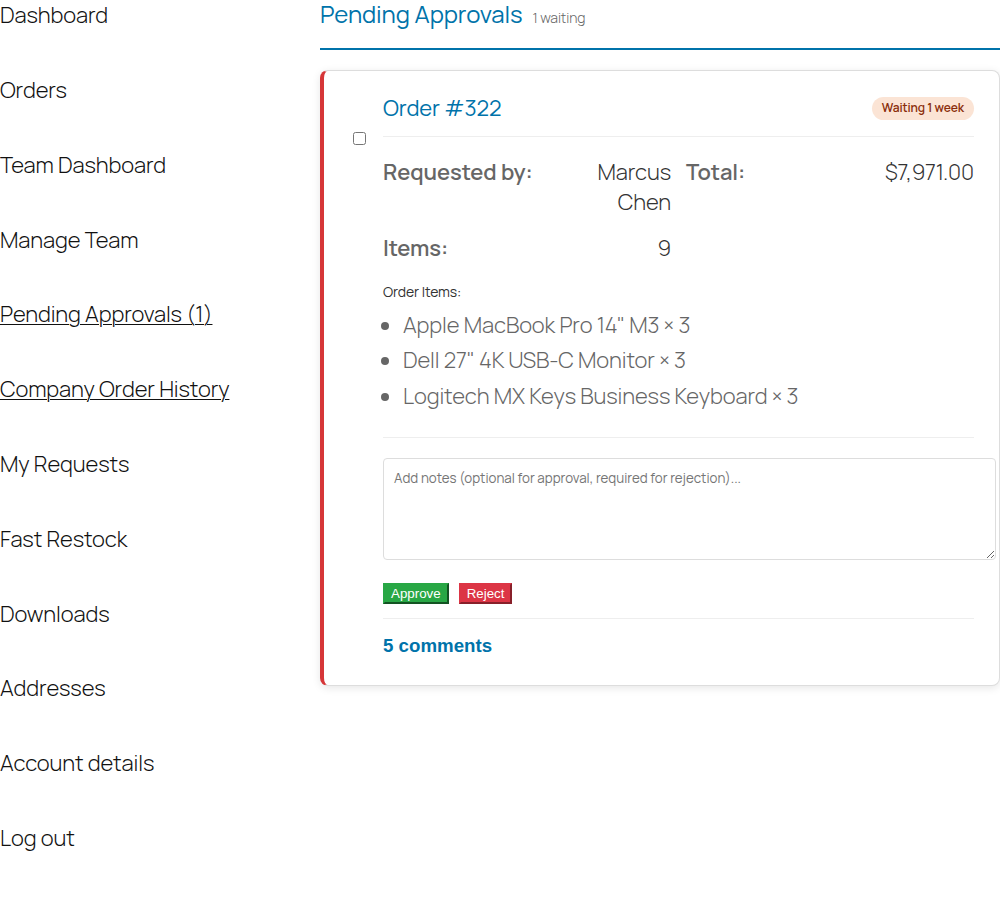
Every approval has its own comment thread, so a Manager can ask a question and the Requester can respond before a decision is made — visible from both the Pending Approvals and My Requests screens.
Once they approve or reject, a confirmation appears at the top of that order's card saying what happens next — for example "Order #322 approved. Marcus Chen has been emailed a link to pay." The order stays on screen marked Approved or Rejected, its buttons are removed, and the waiting count updates. An approver's own orders never appear in their list; those go to someone else.
If an item sold out while the order was waiting
Stock isn't reserved while an order waits for approval, so another customer can buy the last units in the meantime. If that happens, Approve is refused with a message naming the item and how many are left (for example "needs 3, 1 left"), and a note is added to the order. Restock the item, or ask the buyer to change the order, then approve it. Products that don't track stock, or that allow backorders, are never blocked.
Important options and what to expect
Edge case: no one to approve it
If a company has no Manager or Admin — nobody removed, or everyone with those roles left — the order is still placed and held as Pending Approval, just with no approver assigned. You're emailed, and it shows up as "waiting for an approver" on your CrewCommerce Dashboard until an admin claims it:
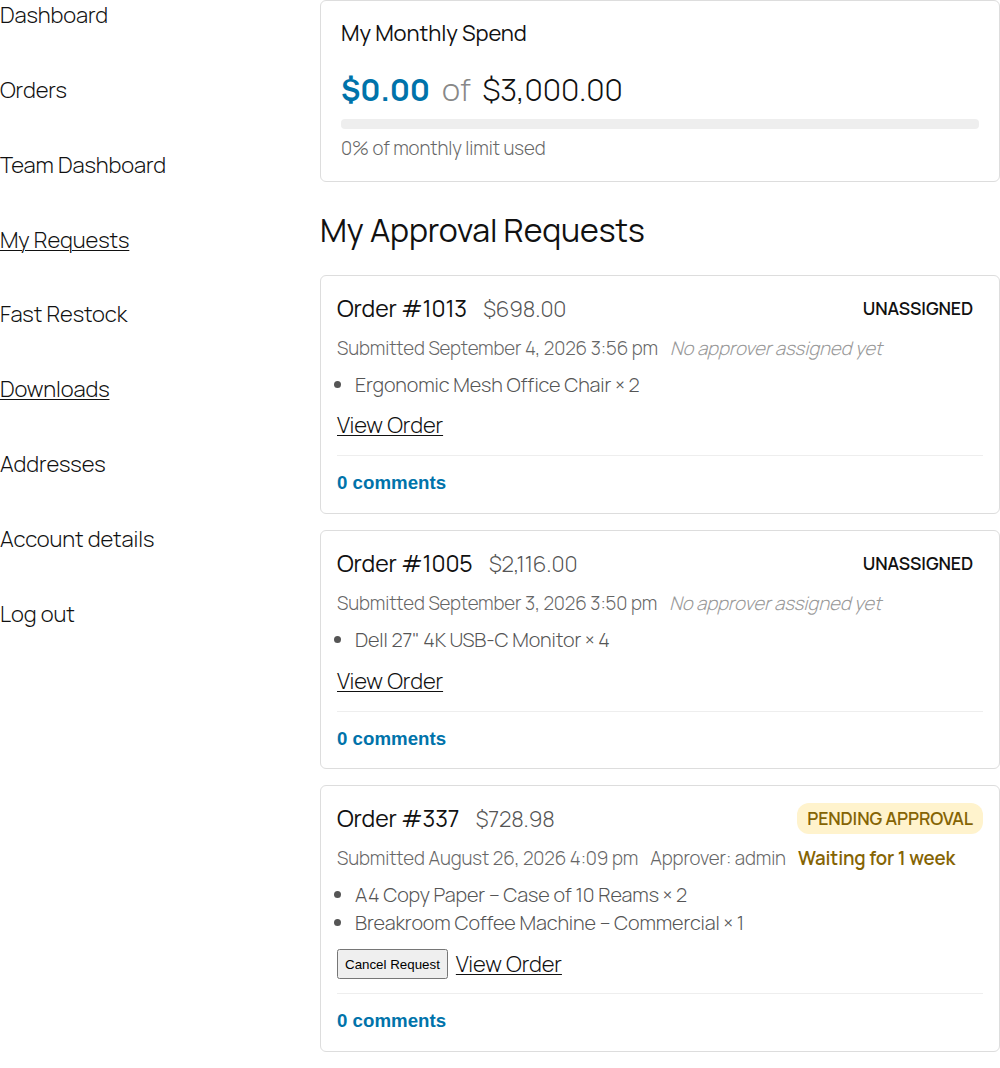
You (or any site admin) can claim and decide it from CrewCommerce > Approvals in WP Admin. The person who placed the order can't claim it for themselves.