Going further
Advanced Usage
Once the basics are working, these are the settings that let you tune CrewCommerce to how a specific company or store actually operates.
Different approval terms per company Pro
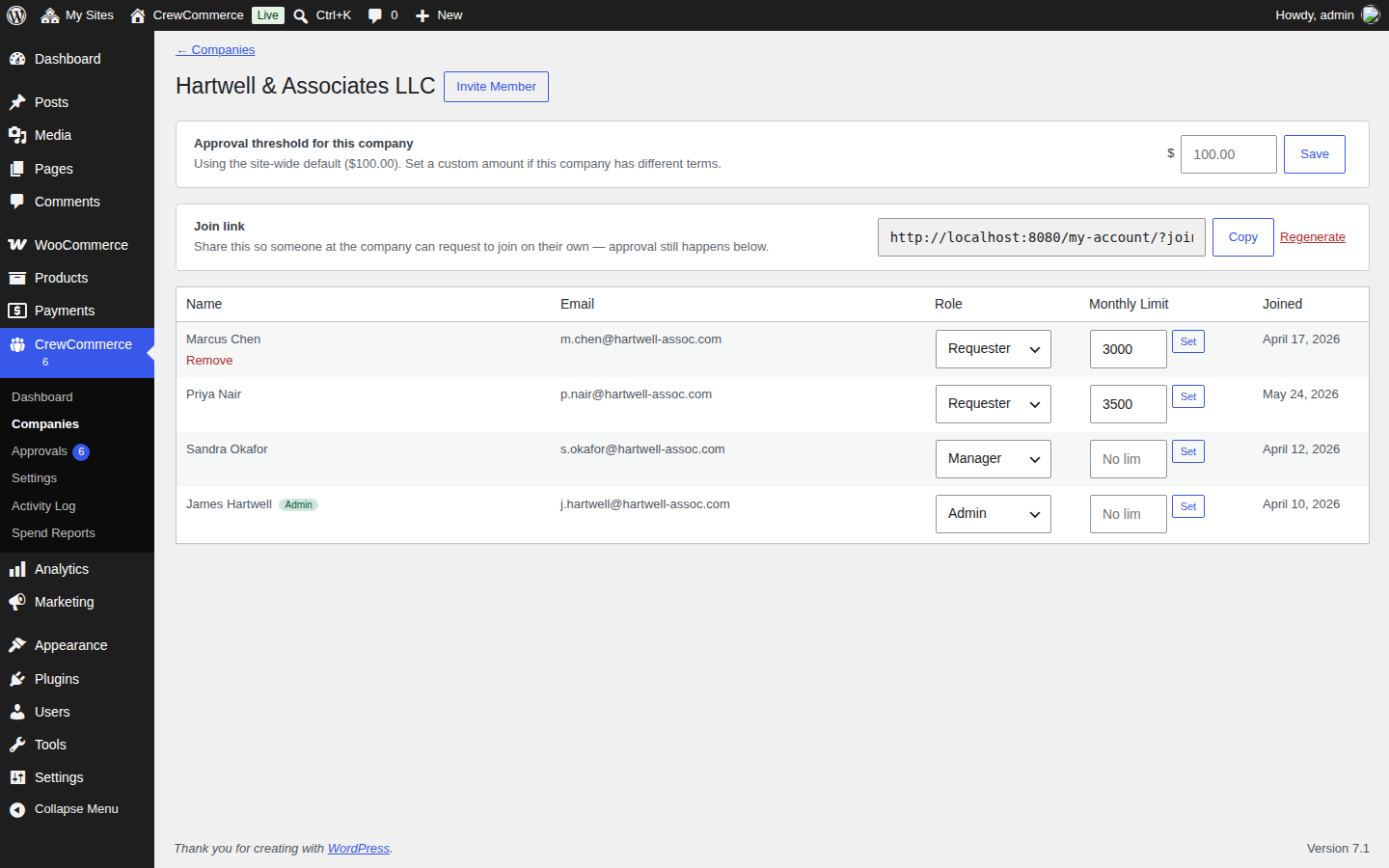
Your site-wide order value threshold (in Settings) is a default, not a rule every company has to follow. From a company's detail page in WP Admin, you can set a custom threshold just for that company — useful for a long-standing account you trust with a higher limit, or a new account you want to keep on a tighter one.
Requiring two levels of approval Pro
For higher-stakes purchases, turn on Multi-Level Approval in Settings. Instead of the first available Manager or Admin approving an order, it requires a Manager to approve first, then an Admin to approve after — a genuine second sign-off, not just a formality.
Extending approval rules to Managers
By default, only Requesters' orders are checked against your approval rules. If you want Managers held to the same standard — for example, a Manager shouldn't be able to place a huge order without their own Admin knowing — add "Manager" under Apply Rules To in Settings. Admins can never be included; they're always exempt. A Manager's order goes to another Manager, or to the company Admin if there isn't one — never back to them.
Writing your own "held for approval" message
When a Requester places an order that needs approval, the order confirmation page tells them it's waiting and names their approver. You can replace that wording in Settings under Checkout Notice (Requester) — useful if you want to set expectations ("approvals usually take a day") or point customers to a specific contact.
Mapping your own offline payment gateway
After approval, an order paid by cash on delivery, bank transfer or check moves on the way it would have at checkout, and anything else is treated as an online payment: it waits in Pending payment and the Requester is sent a link to pay (see Payment after approval). If you use another offline gateway — a purchase-order or pay-by-invoice plugin, say — a developer can tell CrewCommerce which status its orders should go to instead:
add_filter('crewcommerce_status_after_approval', function ($status, $order) {
    if ($order->get_payment_method() === 'your_gateway_id') {
        return 'on-hold'; // or 'processing'
    }
    return $status;
}, 10, 2);
Tuning escalation reminders Pro
The number of hours before an untouched approval gets a reminder email (and, after twice that long, copies in the store owner) is set in Settings under Reminder for Stale Approvals. Shorten it for a store where fast turnaround matters; lengthen it — or set it to 0 to disable reminders — for lower-volume stores where they'd just add noise.
Restricting specific product categories Pro
Categories you check under Restricted Product Categories always require approval, no matter the order total. Use this for anything that needs a second pair of eyes regardless of price — controlled inventory, high-liability items, or anything you simply want tracked more closely than the rest of your catalog.
Auditing what's happened Pro
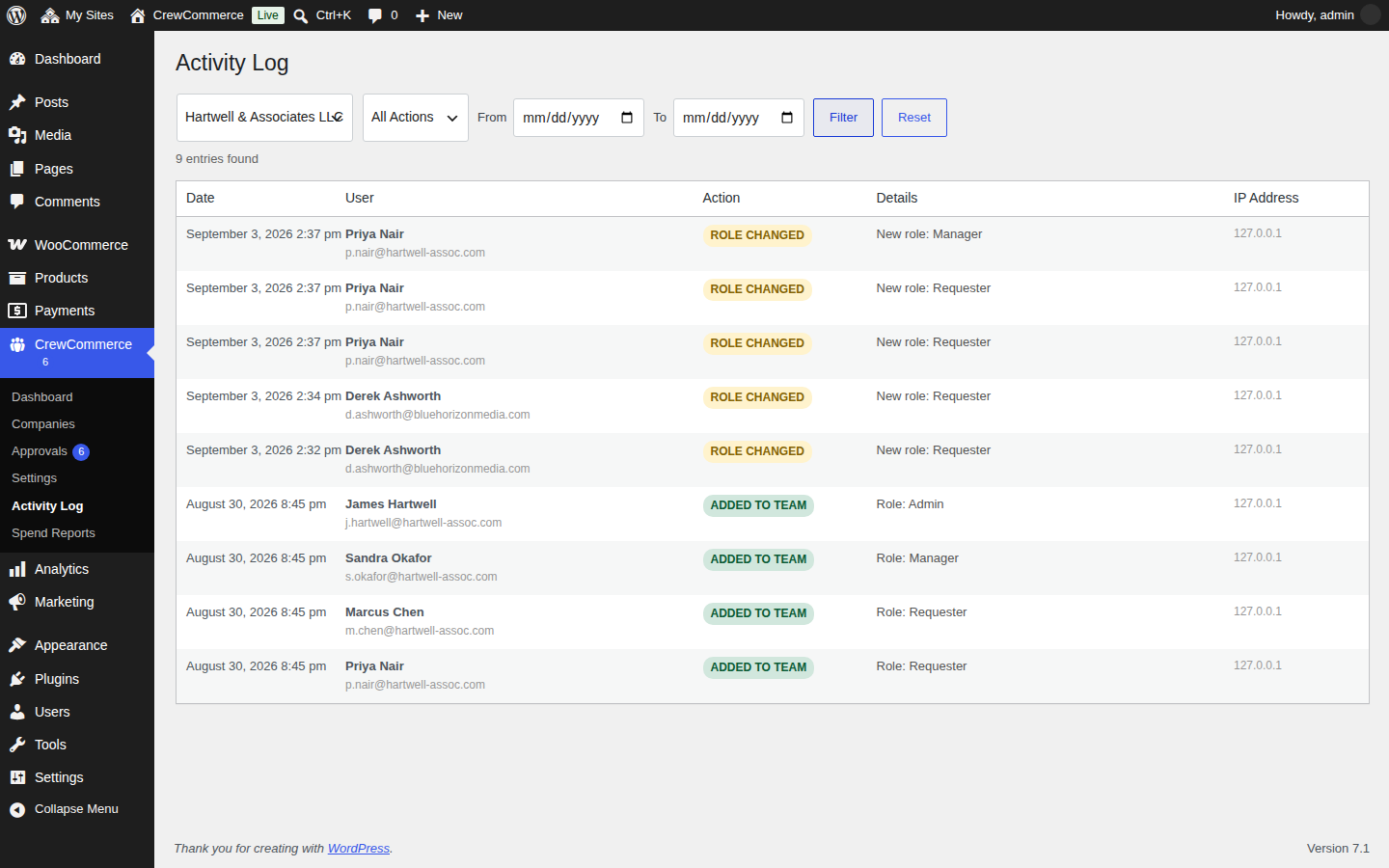
The Activity Log filters by company, action type, and date range — useful for pulling together a record if a customer disputes who changed what, or when a particular role change happened.