TL;DR
WooCommerce doesn’t have an approval step for customer orders. To make some orders wait for a manager at the customer’s company, you need a plugin that holds the order before payment, sends it to that manager, and lets it through only once they approve. In CrewCommerce you set an order value and, if you like, product categories. Matching orders are held as Pending Approval until the company’s Manager or Admin decides, and nothing is charged before then.
Most businesses have some version of the rule “ask before you spend more than $500”. At the customer’s office, that rule lives in an email thread or a quick chat. Your store can’t see it. So a junior buyer places a $4,000 order, you ship it, and then the customer calls to cancel.
Putting that rule into checkout fixes this for both of you. This guide covers how it works, what to decide before you turn it on, and what the buyer and the approver each see.
Who approves: the customer, not you
This guide is about approval by someone at the customer’s company, such as an office manager signing off a colleague’s order. That’s different from you, the store, reviewing orders before accepting them. Both get called “order approval”, and plugins usually do one or the other. If you’re not sure which you need, read store-side vs customer-side order approval first.
Step 1: decide which orders need approval
CrewCommerce checks each order against two rules, which you set under CrewCommerce › Settings:
- Order value threshold. Orders at or above this amount need approval. It starts at $1,000. Set it to 0 and every order needs approval.
- Restricted product categories. An order that contains anything from a category you tick needs approval, whatever its total. This suits things like furniture or electronics, where even a small order is a decision someone wants to make.
If one customer needs different terms, give that company its own threshold from its page in WP Admin. The store-wide amount still applies to everyone else.
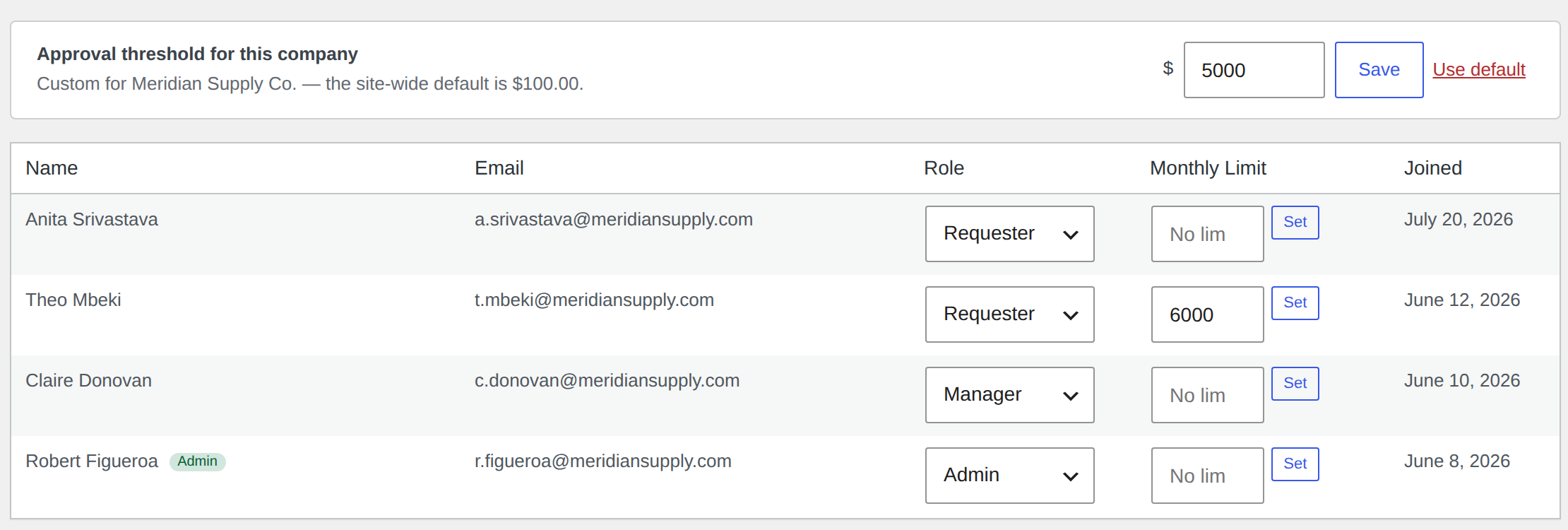
Choosing a threshold
The right number comes from your customers, so ask them. “Above what amount would you want to be asked?” is a quick question, and most office managers have an answer ready.
If you have nothing to go on, start above the size of your customers’ routine reorders, so approvers only see the orders that matter. A threshold that catches every box of pens quickly gets ignored.
Step 2: decide whose orders are checked
By default the rules apply to Requesters, the people whose job is placing orders. You can add Managers too. Admins are always exempt.
Nobody approves their own order. If you include Managers and one of them places an order that needs approval, it goes to another Manager, or to the company’s Admin if there isn’t one.
What the buyer sees
The buyer checks out as usual. If the order matches a rule, it’s placed but held as Pending Approval, and the confirmation page says who it’s waiting on. That person gets an email.
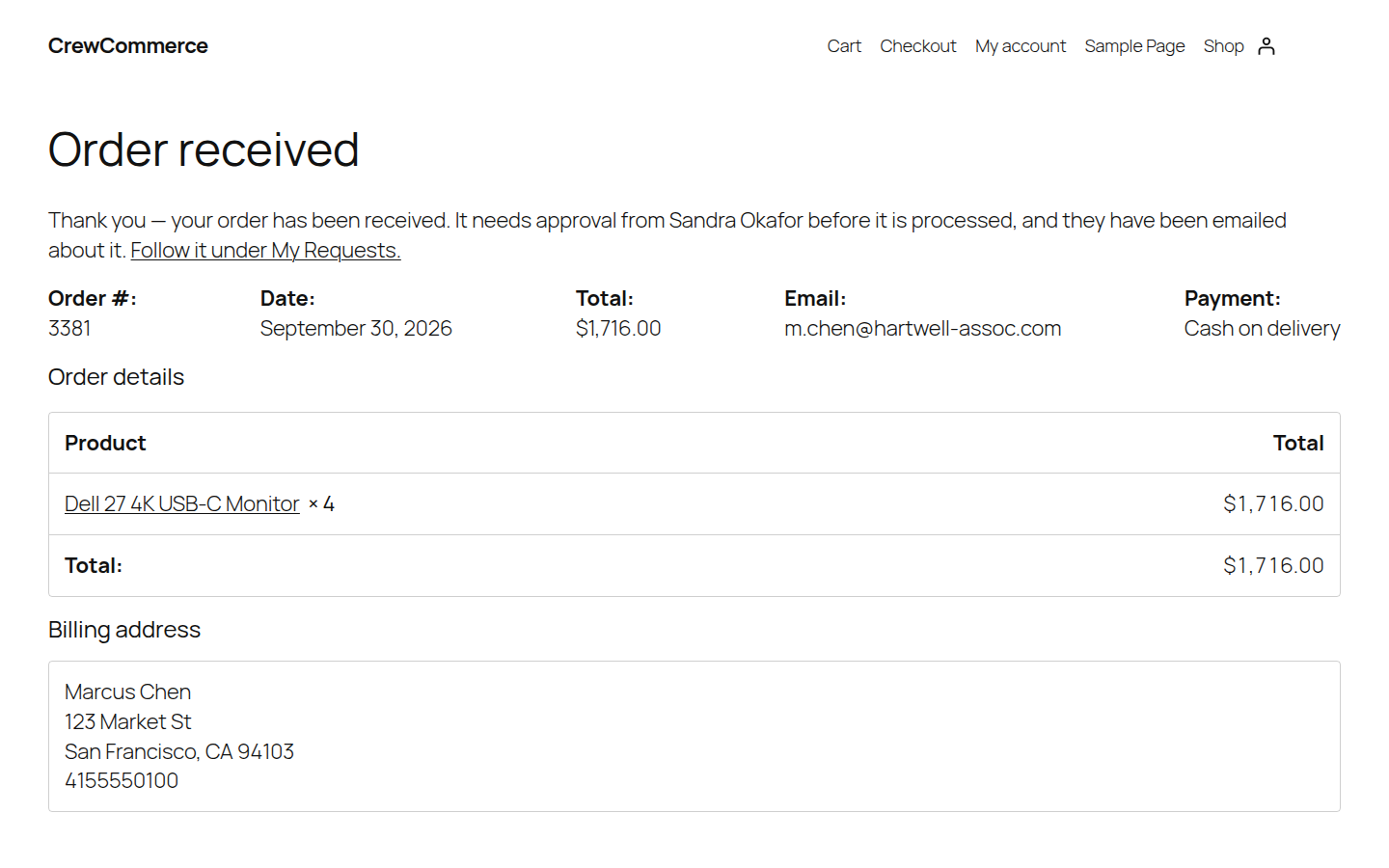
Held orders don’t show up as new orders for you to fulfil. You get WooCommerce’s usual new-order email once the order is approved, and paid if it’s paid online.
The buyer can follow the order under My Account › My Requests, which shows its status, the approver’s name and how long it’s been waiting.
What the approver sees
Managers and Admins find everything waiting for them under My Account › Pending Approvals: the items, the total, who asked, and buttons to approve or reject. A note is optional when approving and required when rejecting, and the buyer is emailed the reason.
Each order also has its own comment thread. If the approver has a question, such as “is this for the new hires or a refresh?”, they ask it there and the buyer answers before anything is decided.
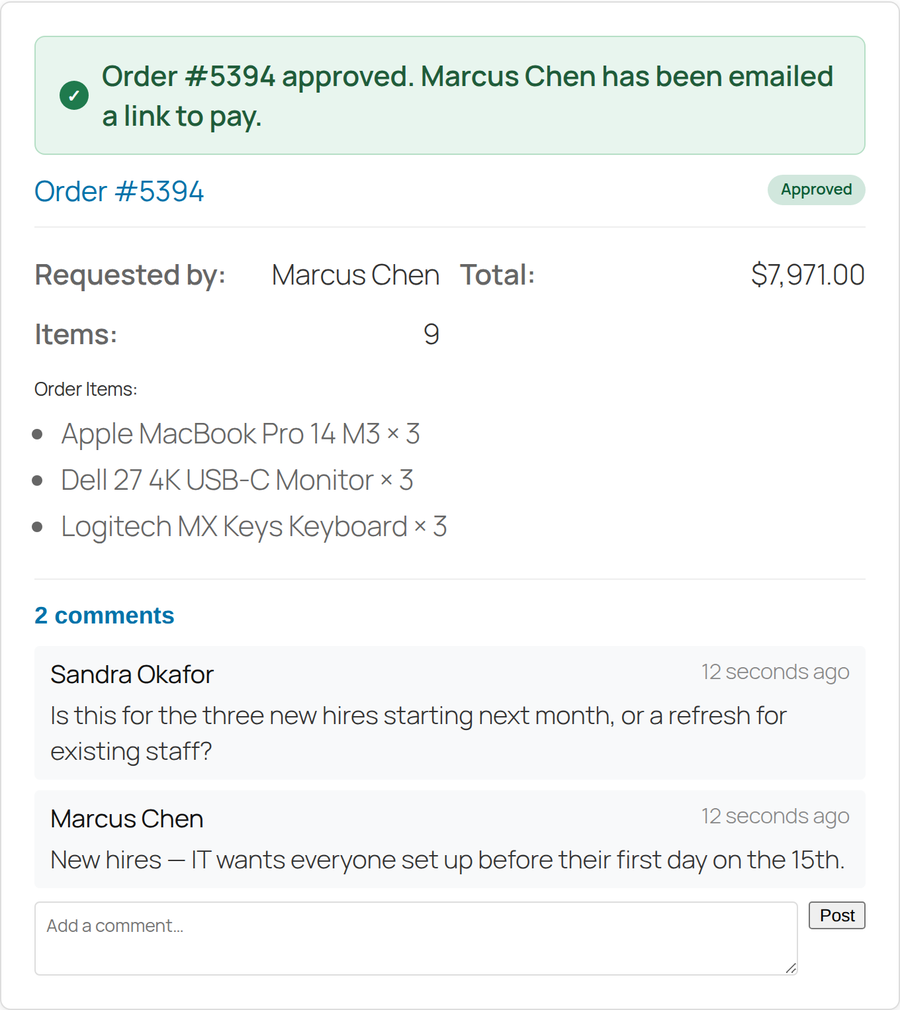
When the customer pays
Nothing is charged while an order is waiting, because WooCommerce skips the payment step for a held order. What happens after approval depends on how it’s being paid:
| Payment method | After approval |
|---|---|
| Cash on delivery | Goes to Processing, as it would have at checkout. |
| Bank transfer or check | Goes to On hold, awaiting payment. |
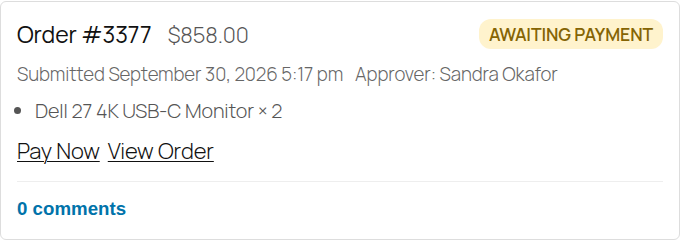
| Card or another online gateway | Goes to Pending payment. The buyer is emailed a link to pay, and a Pay Now button appears in My Requests. |
This is the part store owners ask about most. If the card were charged first, every rejected order would mean a refund. Because approval comes before payment, a rejected order was never charged.
Things to know before you turn it on
- Stock isn’t reserved while an order waits. If someone else buys the last units in the meantime, Approve is refused with a message saying how many are left. Restock, or ask the buyer to change the order, then approve.
- Slow approvers get a reminder. After 48 hours by default, the approver is emailed. After twice that, you’re copied in. You can change the hours or turn reminders off.
- A company with nobody to approve. If a company has no Manager or Admin left, its orders are still held, just without an approver. You’re emailed and can approve or reject them yourself from WP Admin.
- Two levels, if a customer needs them. Turn on Multi-Level Approval and an order needs a Manager’s approval first, then the Admin’s.
Setting it up, in order
- Install CrewCommerce and create a company for a customer, or let customers create their own when they register.
- Check the company has at least one Manager or Admin, and that its buyers are Requesters.
- Set the order value threshold, and any restricted categories, in Settings.
- Place a test order as a Requester above the threshold, then approve it as the Manager. Check the emails, and if you take cards, pay through the link.
The Quick Start covers each step with screenshots, and Approval Workflows explains every setting.
Questions people ask
Does WooCommerce have order approval built in?
No. WooCommerce has order statuses such as On hold and Pending payment, but no step where someone at the customer’s company reviews an order before it goes through. That comes from a plugin.
Is the customer charged before the order is approved?
Not with CrewCommerce. Nothing is charged while an order waits for approval. If your store takes payment online, the buyer is emailed a link to pay once the order is approved.
Can a manager approve their own order?
No. If a Manager’s order needs approval, it goes to another Manager at the same company, or to the company’s Admin.
Can each company have different approval rules?
Yes. You set a store-wide order value and restricted categories, and any company can have its own approval threshold instead.
What happens when an order is rejected?
The approver has to give a reason, and the buyer is emailed with it. The order is marked as rejected, and since nothing was charged, there’s nothing to refund.
Does it work with the WooCommerce block checkout?
Yes. CrewCommerce works with both the block checkout and the classic checkout, with HPOS on or off.